
 By
ByIf your WordPress website feels slow, you are not imagining it. A slow site costs you visitors, rankings, and money — every single day it stays slow.
According to data from WP Engine, reducing load times by one second increases conversion rates by 17%, while a 100-millisecond delay causes a 7% drop in conversions. And if that is not enough motivation, 47% of visitors expect a website to load within 2 seconds, and 40% will abandon it if it takes longer than 3 seconds.
In this guide I am going to walk you through 12 proven ways to speed up WordPress website in 2026. These tips work whether you are running a blog, a portfolio, or a client website. No advanced technical knowledge needed.
Let’s get into it.
Why WordPress Websites Get Slow
Before fixing the problem, it helps to understand what actually causes it. WordPress is powerful, but that power comes with moving parts that can slow things down when not managed properly.
The most common reasons a WordPress site runs slowly are unoptimized images that are too large for the web, too many plugins loading extra code on every page, a cheap hosting plan that cannot handle even moderate traffic, no caching setup so every visitor triggers a full page load from scratch, and a bloated database full of old revisions and junk data.
The good news is that all of these are fixable. And most of the fixes take less than 30 minutes to implement.
How to Test Your WordPress Speed
Before you start making changes, run a speed test so you have a baseline to compare against. Use one of these free tools:
Google PageSpeed Insights (pagespeed.web.dev) — Shows you a score out of 100 for both mobile and desktop, plus specific recommendations to fix what is slowing you down.
GTmetrix (gtmetrix.com) — Gives you a detailed waterfall report showing exactly how long each element on your page takes to load.
Pingdom (tools.pingdom.com) — Simple and fast. Lets you test from different server locations to see how your site performs for visitors in different countries.
Run your test and note your current load time and score. Then apply the tips below and test again to see the improvement.
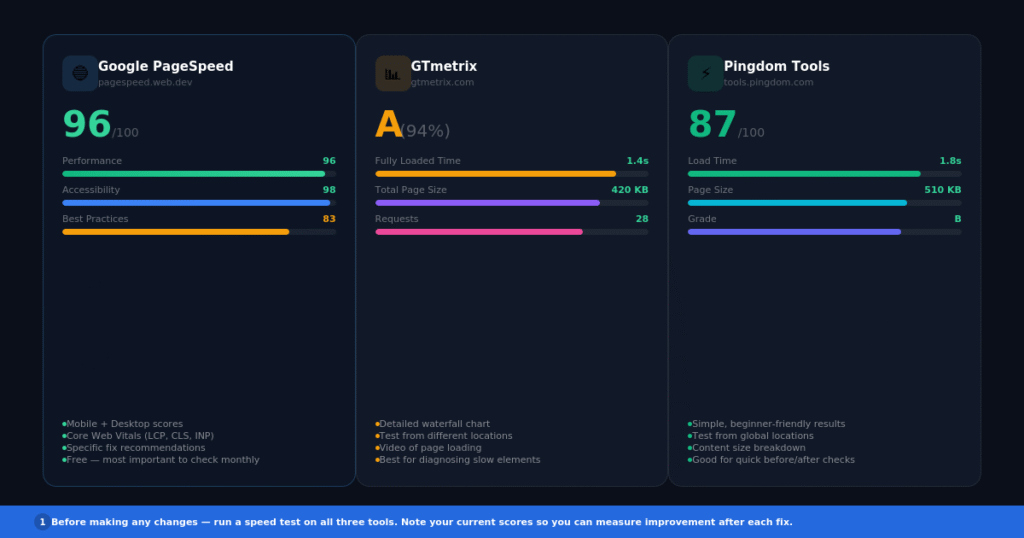
Run a speed test first to get your baseline score before making any changes.
12 Proven Ways to Speed Up WordPress Website
Tip 1: Choose Quality Hosting
Your hosting is the foundation of your website speed. Everything else you do to optimize your site will be limited by the quality of your hosting.
Cheap shared hosting means you are sharing server resources with hundreds of other websites. When any of those sites gets traffic, it slows down the whole server including yours.
For a noticeably faster WordPress website, consider upgrading to managed WordPress hosting. Providers like Cloudways, SiteGround, or Hostinger offer servers configured specifically for WordPress with built-in caching, faster PHP processing, and better hardware.
Without good hosting, all your optimization efforts will pretty much go to waste. Fast hosting equals a fast WordPress site.
Quick win: If you are on shared hosting and your site is slow, this single change will likely make the biggest difference of anything on this list.
Tip 2: Install a Caching Plugin
Every time someone visits your WordPress site, PHP processes the page and pulls data from the database before sending it to the browser. Without caching, this happens on every single visit.
A caching plugin creates a saved static version of your pages. When someone visits, they get the static version instantly instead of waiting for the database query to run. This alone can cut your load time in half.
The best caching plugins store static HTML versions of pages to bypass slow PHP and database queries on repeat visits, which significantly reduces server response time.
The best caching plugins to try in 2026 are WP Rocket (paid, easiest to set up), LiteSpeed Cache (free, best for LiteSpeed servers), and W3 Total Cache (free, more technical but powerful).
WP Rocket is the one I recommend for most sites. It applies 80% of web performance best practices right upon activation, and the setup takes about 3 minutes.
Tip 3: Optimize and Compress Your Images
Images are almost always the biggest reason a WordPress site loads slowly. A single unoptimized photo from your phone can be 5MB or more, and most pages have several images.
The goal is to serve images at the right size and in modern formats like WebP, which are significantly smaller than JPG or PNG without any visible quality loss.
Here is the process to follow for every image you upload. First, resize it to the maximum width it will actually display at — usually 1200px for blog posts and 800px for thumbnails. Second, compress it using a tool like Smush, ShortPixel, or Imagify. These plugins do this automatically when you upload. Third, enable WebP conversion if your plugin supports it.
A CDN can serve images in WebP format for size reductions of up to 34% without any loss of quality, ensuring speedy image load times.
Also, bulk optimize your existing media library. Most image optimization plugins have a one-click bulk compression tool that will go through every image you have already uploaded and compress them all at once.
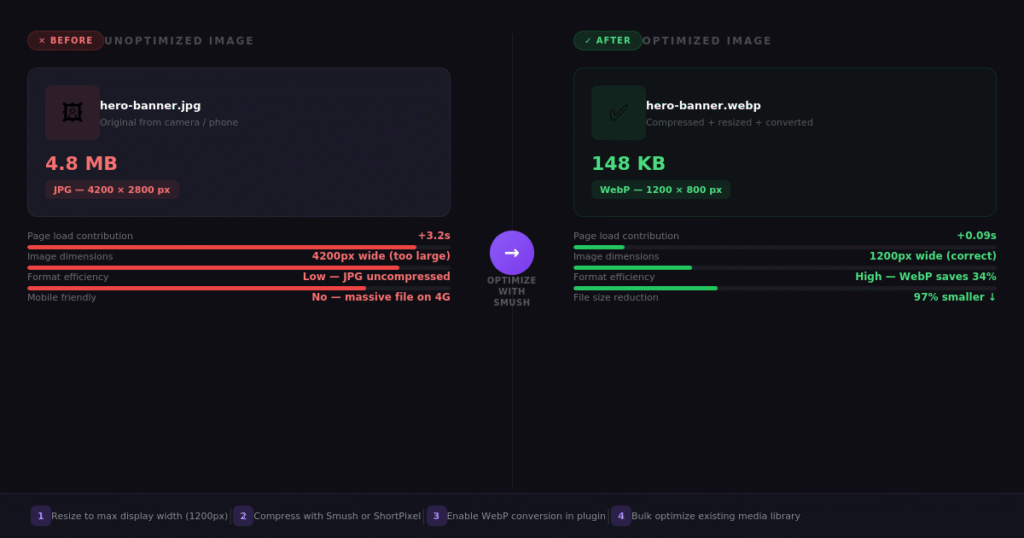
Compress images before uploading and enable WebP format. This one step alone can reduce your page size by 30–50%.
Tip 4: Use a Content Delivery Network (CDN)
A CDN is a network of servers spread across different locations around the world. When someone visits your site, the CDN serves your images, CSS, and JavaScript files from the server closest to that visitor instead of from your main hosting server.
This reduces the physical distance data has to travel, which speeds up load times for everyone — especially visitors who are far from where your hosting server is located.
A CDN can improve loading time by up to 72%, impacting all site visitors.
Cloudflare is the most popular free CDN option. It is easy to set up, works with any hosting provider, and the free plan covers most small to medium sites. For larger sites, Cloudflare Pro and enterprise tiers add more caching power and performance features.
How to set it up: Sign up at cloudflare.com, add your domain, update your nameservers at your domain registrar, and you are live on the CDN within a few hours.
Tip 5: Use a Lightweight Theme
Your theme loads on every single page of your website. A heavy theme that includes dozens of fonts, animations, sliders, and unused widgets adds significant code weight that slows down every page load.
The fastest WordPress themes in 2026 are GeneratePress, Astra, and Kadence. All three are under 50KB, load in under half a second on good hosting, and are fully compatible with page builders like Elementor.
Themes with a lot of dynamic content, widgets, sliders, and sidebars can cause your hosting server to respond slowly. A minimal theme that contains only what is necessary works much better.
If you are currently using a heavy multipurpose theme, switching to a lightweight one is one of the fastest ways to speed up your WordPress website overnight.
Tip 6: Minify CSS, JavaScript and HTML
Every page on your WordPress site loads multiple CSS and JavaScript files. These files contain spaces, comments, and formatting that make them readable to developers but add unnecessary file size for the browser.
Minification removes all of that extra whitespace and makes the files as small as possible. The files work exactly the same way — they just load faster.
Most caching plugins handle this automatically. In WP Rocket, go to File Optimization and turn on Minify CSS, Minify JavaScript, and Combine CSS Files. In LiteSpeed Cache, you will find the same options under the CSS and JavaScript tabs.
Code minification removes unnecessary characters, spaces, and comments from HTML, CSS, and JavaScript files, making code more efficient for browsers to download.
Enable these settings one at a time and test your site after each change. Occasionally, aggressive JavaScript minification can break certain plugins or theme functionality, so it is better to enable them carefully than all at once.
Tip 7: Enable Lazy Loading for Images
By default, when someone loads a page on your WordPress site, every image on that page loads immediately — even the ones at the very bottom that the visitor may never scroll down to see.
Lazy loading changes this behavior. Images only load when they are about to come into view as the visitor scrolls down. This means the initial page load is much faster because only the images at the top of the page need to load right away.
Lazy loading delays loading of images, videos, and iframes until users scroll them into view, which speeds up initial page load by prioritizing above-the-fold content.
WordPress has had basic built-in lazy loading since version 5.5. For more control, most image optimization plugins and caching plugins offer their own lazy loading feature with additional options for videos and iframes as well.
Also Read: WordPress plugins for designers
Tip 8: Clean Up Your WordPress Database
Over time, your WordPress database fills up with data you no longer need. Old post revisions, spam comments, expired transients, deleted page drafts, and plugin leftover tables all add bulk to your database and slow down queries.
Cleaning your database regularly keeps it lean and fast.
The easiest way to do this is with the WP-Optimize plugin. It shows you exactly what is in your database and lets you remove the junk with a single click. You can also schedule automatic cleanups so the database stays clean without you having to remember to do it manually.
You can optimize the WordPress database using plugins such as WP-Optimize or Breeze to clear out trash and keep the database efficient and filled only with what needs to be kept.
Always create a backup before running any database cleanup. Most backup plugins like UpdraftPlus let you create a one-click backup that you can restore immediately if anything goes wrong.
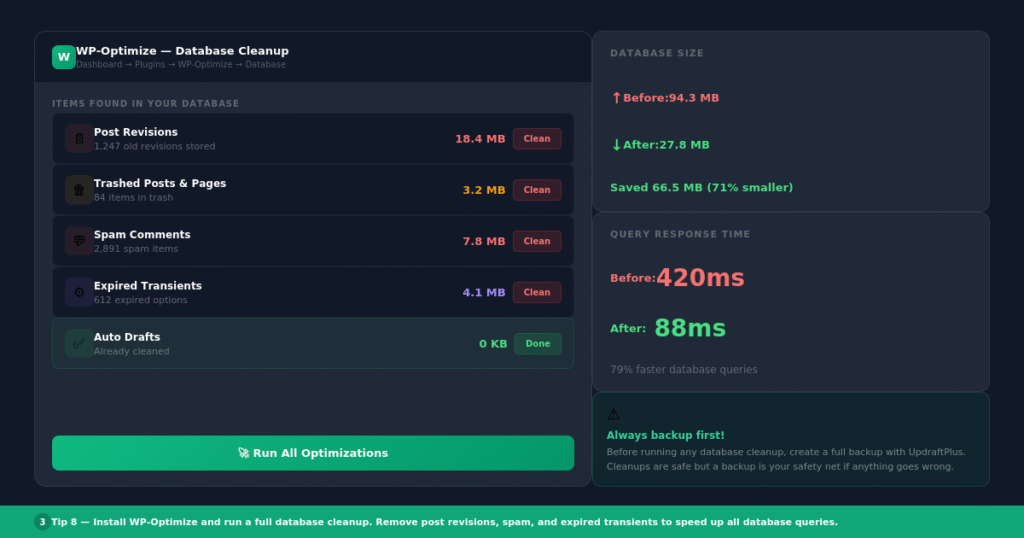
A database cleanup removes old revisions, spam, and expired data. This reduces query time and speeds up your site.
Tip 9: Reduce Your Plugin Count
Plugins are one of the best things about WordPress. They are also one of the biggest causes of slow load times when you have too many of them.
Every active plugin adds PHP code, CSS, and sometimes JavaScript that loads on every page visit. Even plugins you think are inactive can sometimes still run code in the background.
Go through your plugin list and ask yourself honestly whether each one is necessary. If a plugin has not been used in the last month or does not serve a clear purpose on the site, deactivate and delete it.
Too many heavy plugins are a top cause of slow load times. Five well-optimized plugins are better than 20 poorly coded ones.
For functions that require a full plugin to achieve, check whether the same result can be achieved with a small code snippet instead. A plugin called WPCode lets you add custom code snippets to WordPress without needing a full plugin, which can eliminate the need for several light-use plugins.
Tip 10: Limit Post Revisions
Every time you save or update a post in WordPress, a new revision is stored in the database. By default, WordPress keeps unlimited revisions. For a blog with hundreds of posts and years of edits, this can mean thousands of unnecessary database rows slowing down every query.
You can limit the number of revisions WordPress keeps by adding a simple line to your wp-config.php file.
Open your wp-config.php file (you can find it in your root folder via FTP or hosting file manager) and add this line before the line that says “That’s all, stop editing!”:
define('WP_POST_REVISIONS', 5);This tells WordPress to keep only the last 5 revisions of any post. You can change 5 to whatever number you prefer. Setting it to false disables revisions entirely, though keeping a few is useful as a safety net.
This simple tweak can significantly reduce the size of your database, resulting in a site that responds more quickly.
Tip 11: Use the Latest PHP Version
WordPress runs on PHP, and the version of PHP your hosting server uses has a direct impact on how fast your site processes requests. Older PHP versions are significantly slower than current ones.
PHP 8.3 is the current recommended version for WordPress in 2026. Compared to PHP 7.4 (which many older sites still run), PHP 8.x is measurably faster at processing WordPress code.
To check and update your PHP version, log in to your hosting control panel (cPanel or a custom dashboard), look for the PHP Version setting, and update it to the latest stable version your host supports.
Most managed WordPress hosts keep PHP updated automatically. If you are on shared hosting, you may need to update it manually. Always test on a staging site first because occasionally very old plugins are not compatible with newer PHP versions.
Tip 12: Disable Hotlinking and Unused Features
Hotlinking is when another website directly links to images hosted on your server. Every time someone loads that other website, it requests image files from your server, using your bandwidth without giving you any traffic.
You can prevent hotlinking by adding a few lines to your .htaccess file, or by enabling the hotlink protection feature in Cloudflare.
Also take a look at WordPress features you are not using. If you do not need emoji scripts, XML-RPC, the pingback system, or the WordPress REST API for your current setup, disabling these removes extra requests from every page load. Plugins like Perfmatters or the free Disable Bloat plugin handle this in a clean interface without touching any code files.
Tools to Monitor Your WordPress Speed
Optimizing your site is not a one-time job. Things change as you add content, install new plugins, or switch themes. Use these tools to keep an eye on your speed regularly.
Google PageSpeed Insights — Run this monthly on your most important pages. Google’s Core Web Vitals scores directly affect your search rankings, so keep an eye on LCP (Largest Contentful Paint), CLS (Cumulative Layout Shift), and INP (Interaction to Next Paint).
GTmetrix — Great for a detailed breakdown of what is loading and how long it takes. The waterfall chart is especially useful for diagnosing specific slow elements.
Query Monitor plugin — This free plugin shows you which database queries are running on each page and how long they take. Useful for identifying rogue plugins or themes making slow database calls.
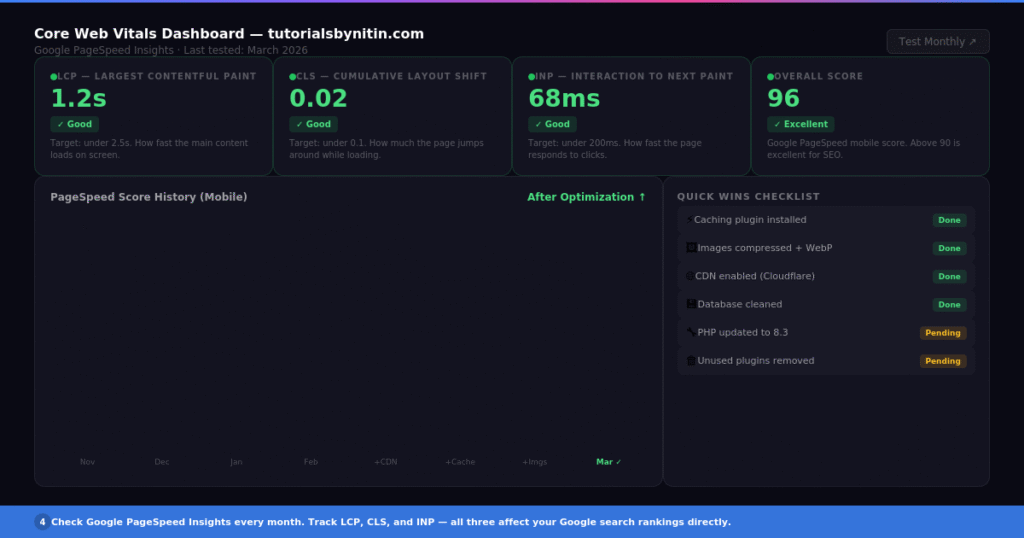
Use Google PageSpeed Insights monthly to track your Core Web Vitals scores. These directly affect your Google rankings.
Subscribe for Newsletter

