
 By
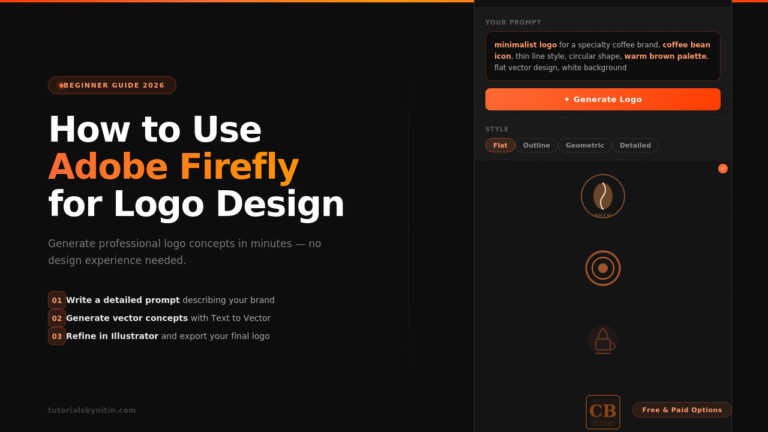
ByCreating a logo used to mean spending hours in Illustrator, fighting with the pen tool, or paying a designer hundreds of dollars. In 2026, that has changed completely. Adobe Firefly for logo design has made it possible for even complete beginners to generate professional-looking logo concepts in minutes.
If you have never used Firefly before, this guide is made for you. I will walk you through every step from setting up your account to exporting a clean vector logo that is ready to use. No design experience required.
Let’s get started.
What Is Adobe Firefly?
Adobe Firefly is Adobe’s own AI-powered creative tool. You type a description of what you want, and Firefly generates images, vectors, text effects, and more in seconds.
What makes Firefly different from other AI tools is that it was trained on licensed Adobe Stock images and public domain content. This means everything it generates is commercially safe. You can use your Firefly outputs for client logos, business branding, merchandise, and any commercial project without worrying about copyright issues.
Firefly is built directly into Adobe Creative Cloud, so it works seamlessly with Photoshop, Illustrator, and Adobe Express. But you can also use it as a standalone tool at firefly.adobe.com without any subscription.
Why Use Adobe Firefly for Logo Design?
There are several reasons why Adobe Firefly for logo design has become popular with both beginners and professional designers.
It is commercially safe. Unlike some AI tools where the training data origins are unclear, Firefly uses licensed content. This matters a lot for logos, which are used commercially.
It generates actual vectors. The Text to Vector feature inside Firefly creates scalable SVG files, not just raster images. Logos need to be scalable — they have to look sharp on a business card and a billboard. Firefly delivers this.
It connects directly to Illustrator. Once Firefly generates a vector, you can open it in Illustrator and edit every single node, color, and shape. This gives you full creative control after the AI does the heavy lifting.
It is beginner-friendly. The interface is clean and simple. You do not need design skills to get started, and the results are surprisingly good even with basic prompts.
What You Need Before You Start
Before you start using Adobe Firefly for logo design, you need a few things ready.
An Adobe account. You can create a free Adobe account at adobe.com. A free account gives you access to Firefly with a limited number of monthly generation credits.
A basic idea of your logo. Think about the business or brand the logo is for. What industry is it in? What feeling should it communicate — modern, playful, luxury, minimal? Even a rough idea helps you write better prompts.
Adobe Illustrator (optional but recommended). For the best results, you will want to refine your generated logo in Illustrator. If you do not have it, you can use the free vector editing tools inside Adobe Express.
That is all you need. Let’s go through the steps.
Step 1 – Set Up Your Adobe Firefly Account
Go to firefly.adobe.com in your browser. Click the Sign In button at the top right.
If you already have an Adobe ID (even a free one), sign in with those details. If you are new to Adobe, click Create an Account. It is free and takes about two minutes.
Once you are logged in, you will see the Firefly homepage with several tools listed. The one you want for logo design is called Text to Vector.
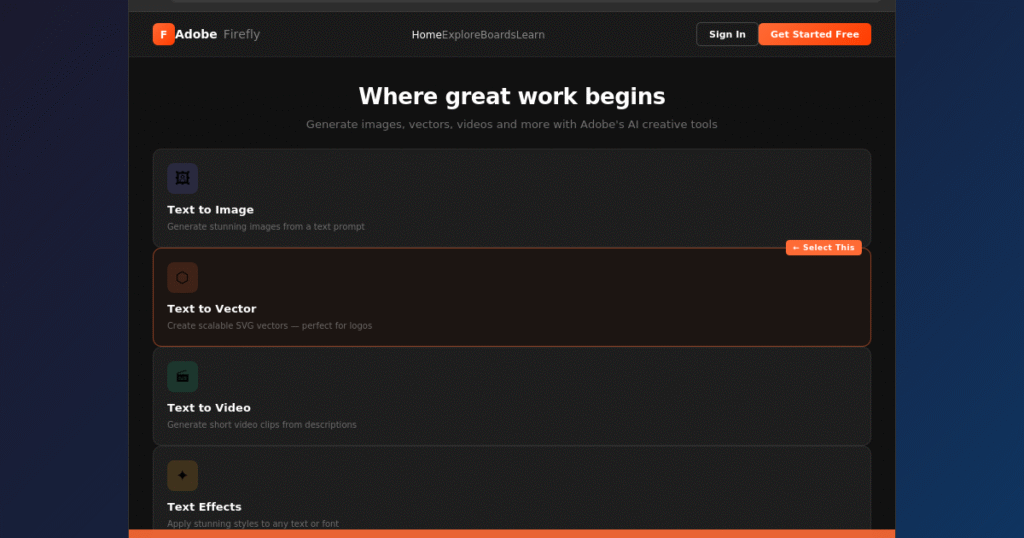
A free Adobe account gives you a set number of generative credits each month. Each generation uses a small number of credits. For casual logo work, the free plan is enough to get started.
Step 2 – Understanding Text to Vector (The Logo Feature)
Most AI image generators produce raster images — JPG or PNG files made of pixels. These are fine for photos and illustrations but terrible for logos, because they blur and lose quality when you resize them.
Firefly’s Text to Vector feature is different. It generates actual SVG vector files. Vectors are made of mathematical paths, not pixels, which means they can be scaled to any size without losing sharpness. This is exactly what logos need.
When you click on Text to Vector, you will see a simple interface with a text box at the top. This is where you type your prompt — your description of the logo you want to create.
On the right side, you will see style options. These let you tell Firefly what visual style you want — flat design, outline, geometric, detailed, and so on. These style controls are just as important as your text prompt, and we will cover them in the next step.
Step 3 – Writing a Good Logo Prompt
This is the most important step when using Adobe Firefly for logo design. The quality of your output depends entirely on how well you describe what you want.
A weak prompt gives you generic results. A detailed prompt gives you something close to what you actually need.
Here is the difference in practice:
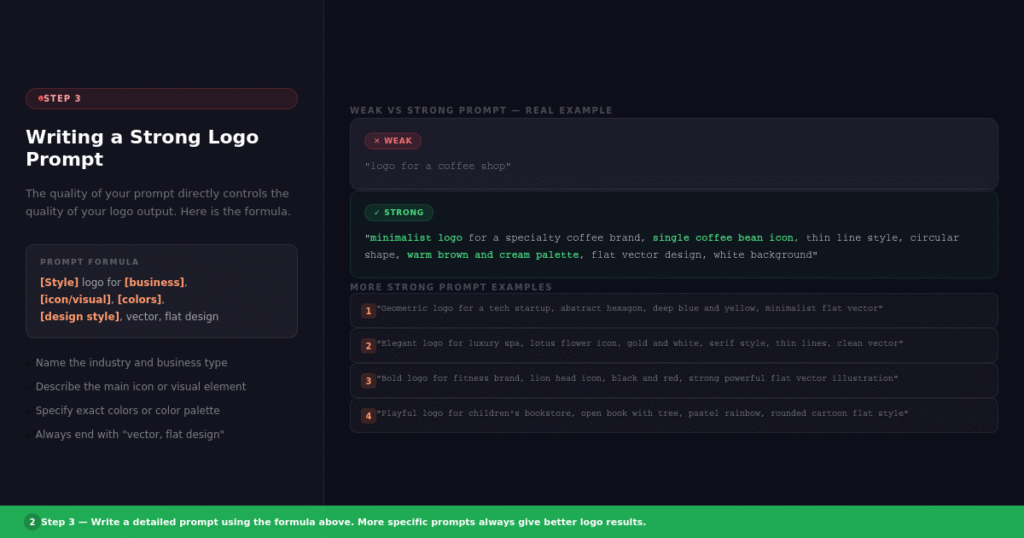
Weak prompt: “logo for a coffee shop”
Strong prompt: “minimalist logo for a specialty coffee brand, single coffee bean icon, thin line style, circular shape, warm brown and cream color palette, clean white background, vector illustration, flat design”
The strong prompt tells Firefly the industry, the style, the visual element, the colors, and the format. Firefly uses all of this information to generate something much more targeted.
Here is a simple formula you can follow for any logo prompt:
[Style] logo for [business type], [main icon or visual], [color palette], [design style], vector, flat design, clean background
Some examples using this formula:
- “Geometric logo for a tech startup, abstract hexagon shape, deep blue and electric yellow, minimalist, flat vector design, white background”
- “Elegant logo for a luxury spa, lotus flower icon, soft gold and white, serif style, thin lines, clean minimal vector”
- “Bold logo for a fitness brand, lion head icon, black and red, strong powerful style, flat vector illustration”
- “Playful logo for a children’s bookstore, open book with a tree growing from it, pastel rainbow colors, rounded edges, cartoon flat style”
Take a few minutes to write out your prompt before you generate anything. The more specific you are, the better the output.
Step 4 – Generating Your Logo Concept
Once your prompt is ready, type it into the text box in the Text to Vector interface. Before clicking Generate, check the style panel on the right.
You will see options like:
Style: Flat, Outline, Detailed, Geometric, Sketch Color: Monochromatic, Full Color, Duotone Background: Transparent, White, Custom
For logos, I recommend choosing Flat or Outline style with a Transparent background. This gives you the cleanest result to work with in Illustrator.
Click Generate. Firefly will produce four vector variations based on your prompt. This usually takes 10 to 15 seconds.
Look through the four options. Even if none of them is exactly what you want, they give you a starting point. Pay attention to the overall shapes and composition rather than the fine details, because you will refine everything later in Illustrator.
If the results are not what you expected, try adjusting your prompt. Add more specific details, change the color description, or try a different style option. Generating is free within your credit limit, so do not be afraid to experiment.
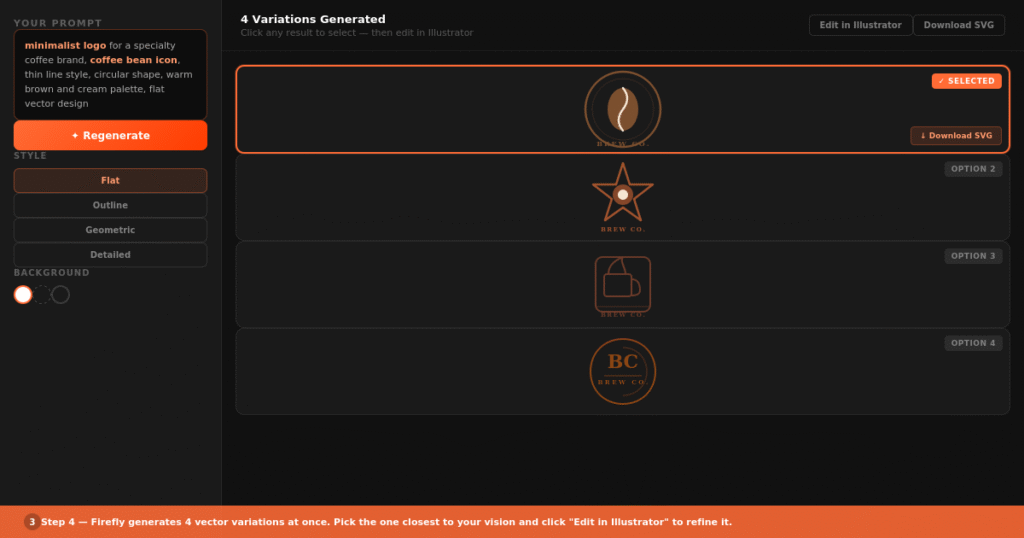
Click the result you like most. You will see a download button and an option to edit it in Illustrator. If you have Illustrator installed, click the Illustrator option for the best editing experience.
Step 5 – Refining Your Logo in Adobe Illustrator
This is where Adobe Firefly for logo design really shines. Because the output is a true SVG vector, when you open it in Illustrator, every element is fully editable.
Here is what you can do in Illustrator:
Edit the paths. Use the Direct Selection tool (white arrow) to click on any shape and adjust its anchor points. You can reshape, scale, and modify any element of the AI-generated vector.
Change the colors. Select any shape and use the color panel to change it to your exact brand colors. You can use HEX codes to match a specific color palette.
Fix the typography. If your logo includes text, Firefly may not always generate it perfectly. Delete any text from the AI output and retype it yourself using a proper font. This gives you clean, editable text rather than outlined letter shapes.
Simplify the shapes. AI-generated vectors sometimes have more anchor points than needed. Use Object > Path > Simplify to clean up any complex paths. This makes the final logo smaller in file size and easier to work with.
Add or remove elements. Use Illustrator’s own tools to add shapes, icons, or other design elements to complement what Firefly generated.
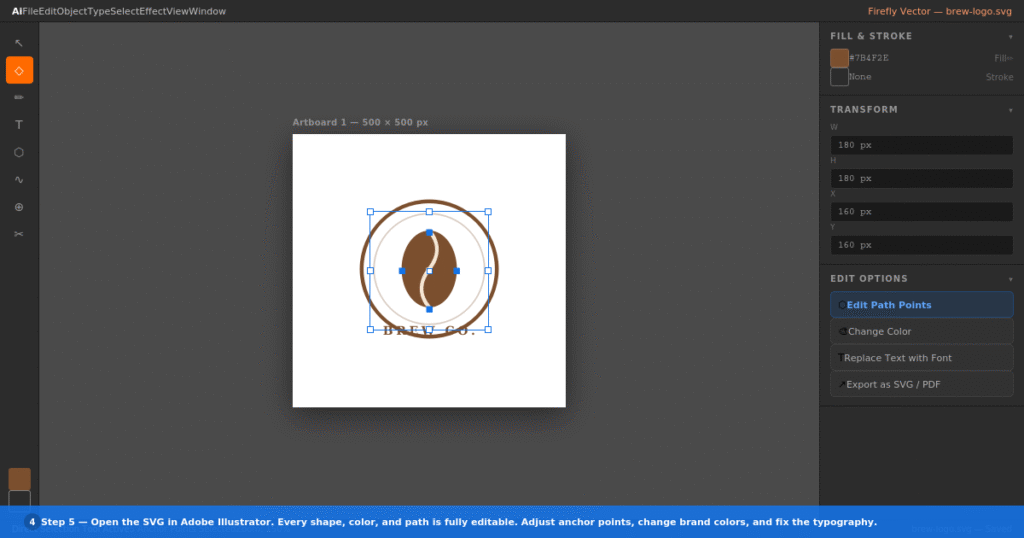
You do not need to be an Illustrator expert for this step. Even basic edits like changing colors and removing elements you do not like can dramatically improve the final result.
Step 6 – Exporting Your Final Logo
Once you are happy with the logo in Illustrator, it is time to export it in the right formats.
For most projects, you need three versions of your logo:
SVG — Use this for websites. SVG is a vector format that loads fast and looks sharp on any screen size.
PDF — Use this for print work. PDF preserves all the vector data and can be sent directly to a printer or placed in InDesign.
PNG with transparent background — Use this for presentations, social media, and documents. Make sure to export at a high resolution, at least 2000px wide.
To export in Illustrator, go to File > Export > Export As for PNG, or File > Save As for SVG and PDF.
Organize your exported files into a clear folder structure. A good logo delivery package includes the logo on a white background, the logo on a transparent background, a dark version, and a light version.
Pro Tips for Better Logo Results with Firefly
Here are a few things that make a real difference when using Adobe Firefly for logo design.
Generate in batches. Run the same prompt four or five times. Each batch gives you four variations, so after five runs you have 20 different concepts to look at. This dramatically increases your chances of getting something great.
Use style references. In the style panel, Firefly lets you upload a reference image. If you have seen a logo style you like, upload it as a reference. Firefly will try to match the general aesthetic without copying the specific design.
Keep your logo simple. AI tools sometimes generate overly complex logos with too many details. For real-world use, simpler is almost always better. Use the simplest result from your batch, and simplify it further in Illustrator.
Test at small sizes. After designing your logo, shrink it down to 50×50 pixels and check if it is still readable. A good logo works at all sizes. If it becomes unclear at small sizes, simplify it more.
Skip the text in Firefly. Firefly’s text rendering inside vectors is improving but still inconsistent. For the wordmark or business name part of your logo, always type it yourself in Illustrator using a proper font. You will get much cleaner and more reliable results.
Commercial use is safe. Unlike many AI tools, Adobe Firefly for logo design is one of the few where you can confidently use the output commercially. Adobe trains Firefly on licensed content and provides commercial use rights with their plans.
FAQs About Adobe Firefly for Logo Design
Is Adobe Firefly free to use for logos?
Yes, Adobe Firefly is free to use with limited monthly credits. You can create a free Adobe account at firefly.adobe.com and start generating logos without paying anything. The free plan has credit limits, but for occasional logo work it is plenty.
Can I use Firefly logos for commercial projects?
Yes. Adobe Firefly is one of the few AI tools specifically designed for commercial use. It was trained on licensed content, and Adobe provides commercial use rights for outputs generated on paid plans. On the free plan, check Adobe’s current terms for commercial use details.
Does Adobe Firefly generate actual vector logos?
Yes. The Text to Vector feature generates true SVG vector files. These are fully scalable and can be edited in Adobe Illustrator like any hand-drawn vector.
Do I need Illustrator to use Adobe Firefly for logo design?
No, you do not need Illustrator. You can use Firefly through the browser at firefly.adobe.com and edit the output in Adobe Express, which is free. However, Illustrator gives you much more control for professional results.
How many credits does logo generation use?
Each generation in Firefly uses a small number of generative credits. The exact amount varies by feature and plan. The free plan gives you a set number of credits per month, which is enough to generate several batches of logo concepts.
What file formats can I export from Adobe Firefly?
From Firefly directly, you can download SVG files. After editing in Illustrator, you can export the logo as SVG, PDF, EPS, PNG, and more depending on what the project needs.
Can Firefly generate a complete logo with text and icon together?
Firefly can generate concepts that include both an icon and text. However, for the cleanest results, I recommend generating the icon separately and then adding your business name in Illustrator using a proper font. This gives you cleaner text that you can edit easily.
Final Thoughts
Adobe Firefly for logo design has made the process of creating professional logo concepts faster and more accessible than ever before. Whether you are a beginner who has never opened a design tool, or an experienced designer looking to speed up your concept phase, Firefly has something useful to offer.
The key is to write detailed prompts, generate multiple batches, pick the strongest concept, and then refine it in Illustrator. The AI does the initial heavy lifting, and your creative judgment shapes the final result.
Start with the free plan, experiment with a few prompts, and see what comes out. You might surprise yourself.
If you found this guide helpful, check out our other posts on Adobe Firefly and AI design tools below. And if you have questions, drop them in the comments.
Subscribe for Newsletter

