
 By
ByThe AI visibility report is the newest panel inside Google Search Console, and it tells you exactly how often your WordPress pages show up inside AI Overviews, AI Mode, and the AI-generated version of Discover. Google finished rolling the report out to every verified property worldwide on August 31, 2026, so if your site is already connected to Search Console, the data is sitting there right now. This guide walks through where to find the report, what the numbers actually mean, and what to change on your WordPress site because of what you see.
What Is the AI Visibility Report in Search Console?
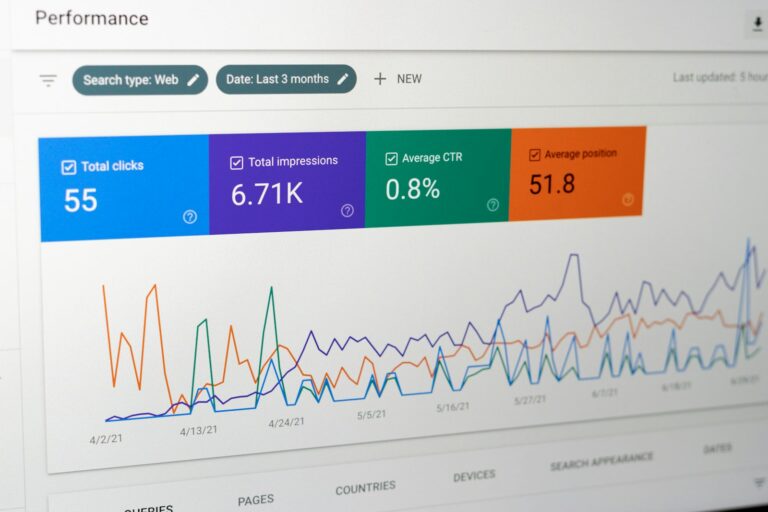
The AI visibility report is a dedicated section inside Search Console’s Performance area that isolates impressions coming from Google’s generative AI features, instead of blending them into your regular search totals. Google announced the report on June 3, 2026, tested it with a small group of sites first, then opened it to every property worldwide by August 31, 2026, according to the Google Search Central Blog.
The report covers three surfaces: AI Overviews and AI Mode inside regular Google Search, plus the AI-generated version of Google Discover on mobile. Before this report existed, those impressions were folded into your normal Search totals with no way to pull them apart. Now they get their own chart, their own table, and their own filters, separate from the classic blue-link Performance report you already use.
For a WordPress site, this matters because AI Overviews and AI Mode pull sentences and summaries straight from your published pages. Whether or not a click follows, an impression there is Google telling you which of your posts it trusts enough to quote. That is genuinely new information, and it did not exist in any Search Console report before mid-2026.
It also arrived alongside a second, related change: Google now separates AI impressions from your regular totals instead of quietly folding them in. That means the total impression numbers you were used to seeing in the classic Performance report may look slightly different going forward, as AI-only impressions get pulled out into their own bucket rather than inflating your standard search count. If your overall impression numbers dipped slightly after late August 2026 with no drop in rankings, this reclassification is a likely explanation, not a penalty.
How Do You Access the AI Visibility Report on Your WordPress Site?
You do not need a new plugin or a new Google account. If your WordPress site already has a verified property in Search Console — set up through Rank Math, Yoast, Site Kit, or a manual HTML tag — the report is already available to you. Here is how to open it:
- Sign in to Search Console and open the property for your WordPress domain.
- In the left sidebar, look under the Performance section for the new report, currently labeled “Generative AI performance” or “AI visibility” depending on your account.
- Choose the Search tab to see AI Overviews and AI Mode impressions, or the Discover tab to see AI-generated Discover impressions.
- Set your date range. The report only holds data from the point Google turned it on for your property forward — it cannot show AI impressions from before the feature existed.
If you manage Search Console through an SEO plugin, it is worth double-checking the connection is still active before you go looking for AI data. Our comparison of the best SEO plugins for WordPress covers how Yoast, Rank Math, and AIOSEO each handle the Search Console link, in case yours has quietly disconnected.
What Counts as an “Impression” in the AI Visibility Report?
An impression in the AI visibility report is registered whenever a URL from your domain is loaded and rendered visibly within an AI-generated response block on a user’s screen, according to Search Console Help. That is a narrower bar than a traditional search impression, where simply appearing on a results page counts, even far down the page.
Two things are missing from the current version of the report, and it is important to know that going in. First, there is no click data — you can see that your page appeared inside an AI Overview, but not whether anyone tapped through to your site from it. Second, there is no click-through rate, since CTR is calculated from clicks. Google has said these are impression-only reports for now, with no announced timeline for adding click metrics.
Picture a WordPress post that ranks on page one for a how-to query and also gets summarized inside an AI Overview above the normal results. That single search could generate an impression in the regular Performance report (for the ranked listing) and a separate impression in the AI visibility report (for the AI Overview quote) — from the same visitor, on the same search. The two reports are not counting the same thing twice in a way that inflates your traffic numbers; they are recording two different placements the page occupied on that results page.
How Does the AI Visibility Report Differ From the Regular Performance Report?
The two reports share the same underlying Search Console interface, but they measure different things and answer different questions. Here is how they compare side by side:
| Aspect | Regular Performance Report | AI Visibility Report |
|---|---|---|
| What it measures | Clicks, impressions, CTR, and average position for classic search results | Impressions only, inside AI Overviews, AI Mode, and AI-generated Discover |
| Click data | Yes | Not currently available |
| Average position | Yes | Not available |
| Filter dimensions | Query, page, country, device, search type | Page, country, device (no query-level breakdown) |
| Historical data | Full history since property verification | Only from when Google enabled AI reporting for your property |
| Best used for | Tracking rankings, clicks, and organic traffic trends | Tracking whether AI features are surfacing your content at all |
The biggest practical difference is that one report is about traffic and the other is about visibility. You can have a page with zero AI impressions and healthy regular search traffic, or the reverse — strong AI Overview presence with modest classic-search clicks. Reading them together, rather than one instead of the other, is what gives you the full picture.
How Do You Filter AI Overviews, AI Mode, and Discover Data Separately?
Inside the report, the chart shows total impressions for your property over the selected time period. Add a URL filter and the chart data aggregates by that specific page, so you can check one WordPress post at a time. The table below the chart groups results by whichever dimension you pick: page, country, or device.
What you cannot currently do is filter by search query, the way you can in the classic Performance report. Google’s dimensions for this report stop at page, country, and device — there is no query column. That is a real limitation if you were hoping to reverse-engineer which exact questions are triggering AI Overviews that feature your content; for now, you can only see that a page was featured, not the query that surfaced it.
The Search tab and the Discover tab are also entirely separate views. AI Overviews and AI Mode impressions live under Search; AI-generated Discover impressions live under their own report. If a WordPress post gets picked up in both places, you will need to check each tab individually rather than seeing a combined total.
As a practical example, say you run a WordPress site publishing recipe tutorials and want to know whether a specific “how long to roast a chicken” post is getting AI attention. Filter the table by that page’s URL, set the date range to the last 28 days, then switch the grouping to device. If the impressions are almost entirely mobile, that tells you the AI Overview is likely triggering on quick, on-the-go searches — useful context if you are deciding where to put the direct answer for skimmers versus the longer explanation for readers who click through.

What Should WordPress Site Owners Actually Do With This Data?
Start by sorting the table by impressions and looking at your two extremes: the pages AI features quote constantly, and the pages that show zero AI impressions despite ranking well in regular search. The first group tells you what your best-performing content structure looks like. The second group is your to-do list.
For the pages with zero AI impressions, check whether the page actually answers a question in plain, extractable language near the top, rather than burying the answer under a long introduction. AI Overviews tend to pull short, self-contained sentences, so a post that opens with three paragraphs of scene-setting before it gets to the point is harder for Google’s systems to quote. Our guide to generative engine optimization for WordPress goes deeper into structuring content so it is easy for AI systems to lift and cite.
Structured data also plays a role. Pages with clear FAQ sections and proper schema markup give Google’s AI systems an easier, more confident source to quote from. If your WordPress posts do not have JSON-LD schema yet, our step-by-step guide to adding JSON-LD schema in WordPress covers the setup without needing custom code.
Finally, treat this report as one more signal alongside the fundamentals, not a replacement for them. Site speed, mobile usability, and clean technical SEO still decide whether Google can crawl and trust a page in the first place. If those basics are shaky, fixing them will move both your regular rankings and your AI visibility at the same time — see our roundup of WordPress SEO fixes for 2026 for the fastest wins.
It also helps to set a recurring check rather than a one-time look. Pull up the AI visibility report once a month, compare it against the previous period, and note which posts moved from zero impressions to nonzero after you edited them. Because Google is still expanding which queries trigger AI Overviews, a page that shows nothing today can start appearing a few weeks later with no changes on your end at all — so give any edit at least a few weeks before judging whether it worked.
How Do You Control Whether Your Content Appears in AI Features?
Alongside the AI visibility report, Google rolled out a separate setting called Search generative AI control. It lets site owners decide whether their content can be used in Google’s AI-generated search features, without touching whether the same content shows up in regular blue-link results. Before this control existed, the only way to opt out of AI features was to block indexing altogether, which also removed you from normal search — an all-or-nothing trade-off most site owners were not willing to make.
Opting out through this control does not affect your regular Google rankings; it only removes your pages from AI Overviews, AI Mode, and AI-generated Discover summaries. For most WordPress blogs chasing traffic, leaving AI features switched on and using the visibility report to improve your content is the more useful path. But if you run a subscription site or a business where AI-generated summaries could substitute for a visit to your page entirely, this is the setting that lets you say no without disappearing from search altogether.
Where Do You Turn On Search Generative AI Control for a WordPress Property?
The control lives in Search Console itself, not in your WordPress dashboard, so no plugin update is needed to reach it. Open your property, look for the Search generative AI control setting under the Settings section, and you will see a simple toggle describing whether your content can be used to generate AI-powered summaries in Search and Discover. It applies at the property level, so it covers your whole WordPress domain rather than individual posts.
Because the setting is separate from indexing and separate from the noindex meta tag your SEO plugin manages, changing it will not trigger a re-crawl of your entire site or affect your XML sitemap. It simply tells Google’s AI systems whether they are allowed to draw from your pages the next time they build a summary. Most WordPress site owners will not need to touch it at all — the default keeps AI features on, which is what maximizes visibility inside the very report this guide is about.
What Mistakes Should You Avoid When Reading This Report?
The most common mistake is treating a low impression count as proof that a page is failing. Not every query has an AI Overview attached to it — Google only generates one when it judges an AI summary genuinely helps the searcher, so plenty of high-performing WordPress posts will show few or no AI impressions simply because their target queries rarely trigger the feature. Check your regular Performance report alongside this one before concluding anything is broken.
A second mistake is assuming an AI impression is worth the same as a classic search impression. Because there is no click data yet, you cannot calculate a true value per impression the way you can with CTR in the regular report. Treat the numbers as a directional signal — which pages the AI systems trust — rather than a metric to optimize toward a specific target number.
A third mistake is confusing this first-party Search Console data with third-party “AI referral traffic” tools that estimate visits from ChatGPT, Perplexity, or other AI assistants using server log analysis. Those tools measure actual referral traffic from outside AI products; the AI visibility report measures only impressions inside Google’s own AI features. They answer different questions, and mixing the two into a single dashboard without labeling the source is a fast way to make bad decisions.
Frequently Asked Questions
Does the AI visibility report show clicks or only impressions?
Only impressions, as of the current version. There is no click data or click-through rate in the AI visibility report yet, according to Search Console Help — you can see that a page was featured, but not whether anyone clicked through from it.
Is the AI visibility report available for every WordPress site?
Yes. Google made the report available globally to every verified Search Console property by August 31, 2026. If your WordPress site has a verified property, the report should already be visible in the Performance section.
How far back does the AI visibility report’s data go?
Only from the date Google enabled AI reporting for your specific property, not your full Search Console history. Sites that were part of the earlier test group will have more historical data than sites added during the global rollout.
Does opting out of AI features hurt my regular Google rankings?
No. Search generative AI control is separate from your regular search ranking. Opting out removes your pages from AI Overviews, AI Mode, and AI-generated Discover, but does not change how your pages rank in classic search results.
Can I see which exact search queries triggered an AI impression?
Not currently. The AI visibility report breaks data down by page, country, and device, but it does not include a query column the way the regular Performance report does. If you need query-level insight for a page, cross-reference it against the same page’s entry in the classic Performance report, where queries are still tracked in full.
Do I need to install a new plugin to see this report?
No. The AI visibility report appears automatically inside Search Console for any verified property — no new WordPress plugin, and no change to your existing SEO plugin setup, is required to see it.
Subscribe for Newsletter

