
 By
ByNeed a bank statement PDF to Excel converter that is free and has no signup? Here is how to convert your statements in minutes, and what to watch out for.
Your bank sends you a clean PDF statement every month. Try to sort it, filter it or add up your spending, and you’ll hit a wall fast. A PDF looks like a table, but Excel can’t read it like one.
That’s why people search for a bank statement PDF to Excel converter. And then the second problem shows up. I checked a lot of these tools, and almost all of them ask you to sign up, give an email address, or pay before you can download a single file.
One site didn’t. I’ll get to it in a minute, but first it helps to know why this job is harder than it looks.
Why copy and paste usually fails
Select the transactions in your PDF, paste them into Excel, and everything lands in one column. Dates stick to descriptions. Amounts stick to balances. Text to Columns can help, but the moment a description wraps onto a second line, your rows break.
Acrobat’s export isn’t always better. One person on Adobe’s community forum said their bank statement came out with more than 20 columns, when all they needed was date, description and amount. A statement also carries addresses, legal text and logos that have no business in a spreadsheet.
Honestly, if your bank lets you download a CSV or Excel file, start there. The catch is the date range. Chase, for example, gives you about two years as a spreadsheet, while its PDF statements go back up to seven. Older history only exists as PDF.
What to look for in a converter
Not all converters are equal. Before you upload anything, check these:
- No forced account. If it wants your email before it shows a result, move on.
- Privacy. Your statement shows your name, account details and every shop you pay.
- Accuracy checks. Copying rows isn’t enough. The tool should compare them with the balances.
- A review step. You should see the extracted rows next to the original page.
- The right export format. Excel, CSV, or something your accounting software can import.
BankStatementHub: free and no signup
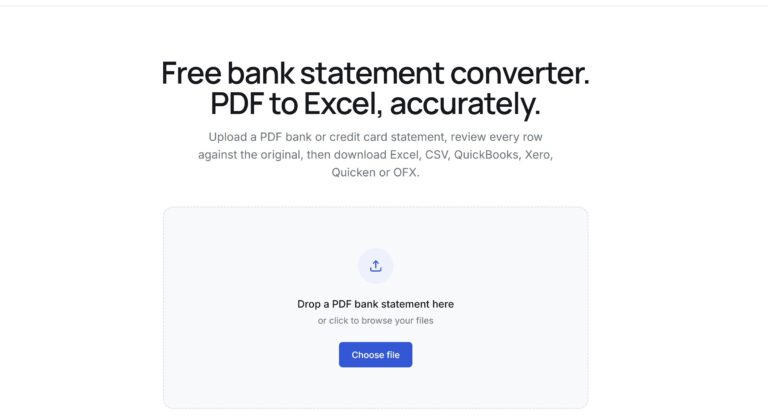
BankStatementHub is the one that ticked every box for me. It’s free to use, and there’s no signup at all. Compare that with another converter I found, which gives you one free conversion every 24 hours and then charges from $15 a month.
The process takes three steps:
- Upload your PDF statement. Text-based, scanned and password-protected files all work.
- Review it. Pick the pages with transactions, then compare the extracted rows with the original side by side.
- Export the file as Excel, CSV, QuickBooks, Xero, Quicken, QIF or OFX.
Privacy and accuracy
Statements you download from online banking are converted inside your browser. The file never leaves your computer. You can even test it with your Wi-Fi switched off. Scanned statements need online processing, but the site asks first, handles the pages in memory and doesn’t keep them.
Accuracy is the part I like most. When a statement prints a running balance, every row is checked against it, and any mismatch gets highlighted. Missing pages or months get flagged too.
The limits you should know
It isn’t perfect, and the site says so itself. Each conversion covers up to 10 pages, so for long statements you select only the pages with transactions. It’s free during early access, which means that could change later. And automated extraction can still make mistakes, so always review the result before you use it for accounting or tax.
How to convert a bank statement PDF to Excel
How do you convert a bank statement PDF to Excel? Download the PDF from your bank, upload it to a converter such as BankStatementHub, check the extracted rows against the original, then export as .xlsx. Text-based PDFs convert fastest. Always compare the closing balance with your statement before using the file.
Converting a Chase statement
Chase statements have a few quirks that trip up most tools. Transaction dates show only the month and day, like 12/28, with no year. The converter takes the year from the statement period, so a statement running from December into January comes out right. Credit card statements print purchases as positive numbers, the opposite of checking, and the converter flips them so everything reads the same way.
To get your PDFs, sign in on chase.com, open Statements & documents, pick your account and year, then click the download icon next to each month. After that, drop them into the Chase statement to Excel page.
This also helps if your budgeting app lost older history after you reconnected your Chase account. The bank usually sends only about 90 days again, but your PDF statements still cover the gap.
A few tips before you start
- Download PDFs straight from online banking. Text-based files convert more cleanly than scans or photos.
- Keep the original PDF as your source of truth.
- Test one month first, then run the whole year.
- Check the closing balance in Excel against the one printed on your statement.
- Glance at the first few rows before you total anything, especially on credit cards.
Final thoughts
A good bank statement PDF to Excel converter should save you time, not ask for your email first. After going through a pile of paid and signup-only options, BankStatementHub is the one I’d send a friend to. It’s free, it’s private, and it checks its own work.
Try it with a single statement. If the numbers match your closing balance, you’ll know within a minute whether it works for your bank.
Subscribe for Newsletter

