
 By
ByIf you’re working with the revolutionary all-new Affinity app launched in October 2025, mastering Affinity shortcut keys can dramatically improve your productivity and workflow efficiency. Whether you’re using the Vector Studio for graphic design, Pixel Studio for photo editing, or Layout Studio for publishing projects, keyboard shortcuts are your secret weapon to work faster and smarter in this unified creative platform.
In this comprehensive guide, we’ll explore all the essential Affinity shortcut keys for the new unified Affinity app that combines the power of Designer, Photo, and Publisher into one incredible free application. From basic navigation to advanced editing techniques, we’ve got you covered with shortcuts for both Windows and Mac platforms.
The All-New Affinity: A Game-Changing Free Platform
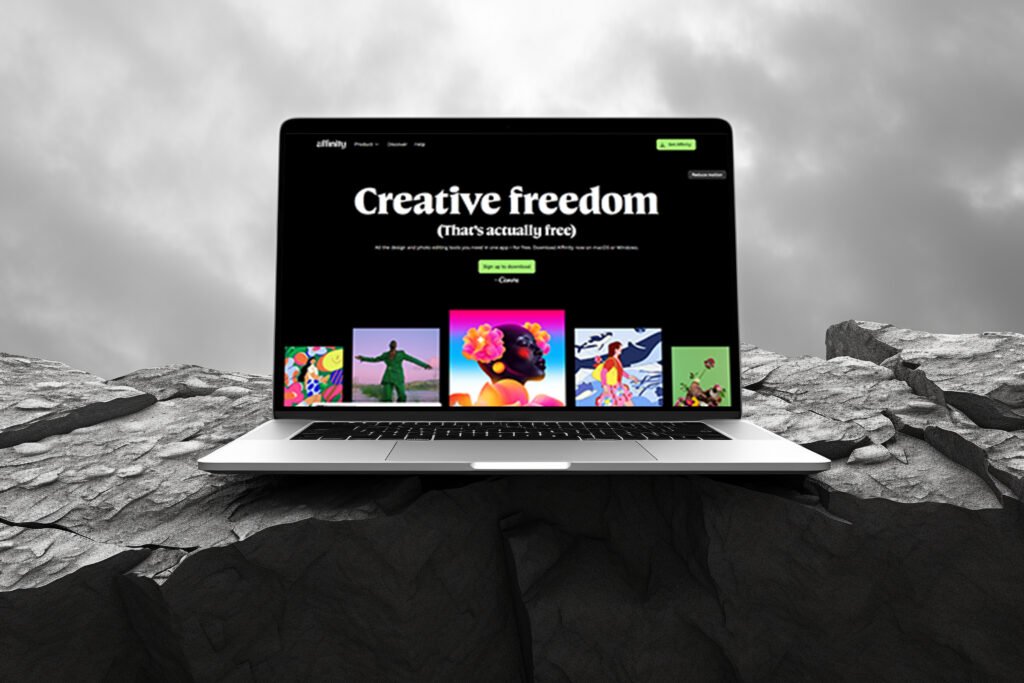
In October 2025, Canva unveiled the completely reimagined Affinity as a single unified application that’s now entirely free for everyone. This isn’t just a software update—it’s a complete transformation that brings professional-grade vector design, photo editing, and page layout tools into one powerful workspace.
The new Affinity represents a major shift in the creative software industry. The company has addressed long-standing complaints about expensive subscriptions and the need to use multiple disconnected applications. Now, everything you need is in one place, and learning Affinity shortcut keys becomes even more valuable because you’re working within a single unified environment.
Why Learn Affinity Shortcut Keys?
Before diving into the specific shortcuts, let’s understand why learning Affinity shortcut keys is crucial for any creative profesional working with the new unified platform:
Time-Saving Benefits
Using keyboard shortcuts instead of constantly reaching for your mouse can save you countless hours over the course of a project. Studies show that designers who use keyboard shortcuts regularly are up to 40% more productive than those who rely solely on mouse navigation.
Seamless Studio Switching
The new Affinity allows you to seamlessly switch between Vector, Pixel, and Layout Studios without leaving the application. Knowing the right Affinity shortcut keys makes these transitions instant and effortless, keeping you in your creative flow.
Professional-Level Speed
Professional designers and photographers rely heavily on keyboard shortcuts to meet tight deadlines and handle multiple projects simultaneously. Learning these shortcuts puts you on par with industry experts who are already taking advantage of this powerful free platform.
Also Read: Top 5 Best Free AI Image Generators For 2026
Understanding the New Affinity Studio Structure
The all-new Affinity organizes tools into three main Studios that you can switch between seamlessly:
- Vector Studio: Contains all the vector design tools (formerly Affinity Designer functionality)
- Pixel Studio: Houses all photo editing and raster tools (formerly Affinity Photo functionality)
- Layout Studio: Provides page layout and publishing tools (formerly Affinity Publisher functionality)
You can mix and match tools from different Studios and create custom workspaces that fit your specific workflow. The Affinity shortcut keys work consistently across all Studios, making your learning curve much smoother.
Essential File and Document Shortcuts
These fundamental Affinity shortcut keys work across all Studios in the new unified app:
File Operations
Document Management:
- New Document: Ctrl + N (Windows) / Cmd + N (Mac)
- Open Document: Ctrl + O (Windows) / Cmd + O (Mac)
- Save: Ctrl + S (Windows) / Cmd + S (Mac)
- Save As: Ctrl + Shift + S (Windows) / Cmd + Shift + S (Mac)
- Export: Ctrl + Shift + Alt + S (Windows) / Cmd + Shift + Option + S (Mac)
- Print: Ctrl + P (Windows) / Cmd + P (Mac)
- Close: Ctrl + W (Windows) / Cmd + W (Mac)
- Switch Document/View: Ctrl + Tab (Windows) / Cmd + Tab (Mac)
Edit Commands
Basic Editing:
- Undo: Ctrl + Z (Windows) / Cmd + Z (Mac)
- Redo: Ctrl + Shift + Z (Windows) / Cmd + Shift + Z (Mac)
- Cut: Ctrl + X (Windows) / Cmd + X (Mac)
- Copy: Ctrl + C (Windows) / Cmd + C (Mac)
- Paste: Ctrl + V (Windows) / Cmd + V (Mac)
- Copy Merged: Ctrl + Shift + C (Windows) / Cmd + Shift + C (Mac)
- Paste Style: Ctrl + Shift + V (Windows) / Cmd + Shift + V (Mac)
- Duplicate: Ctrl + J (Windows) / Cmd + J (Mac)
Vector Studio Shortcut Keys
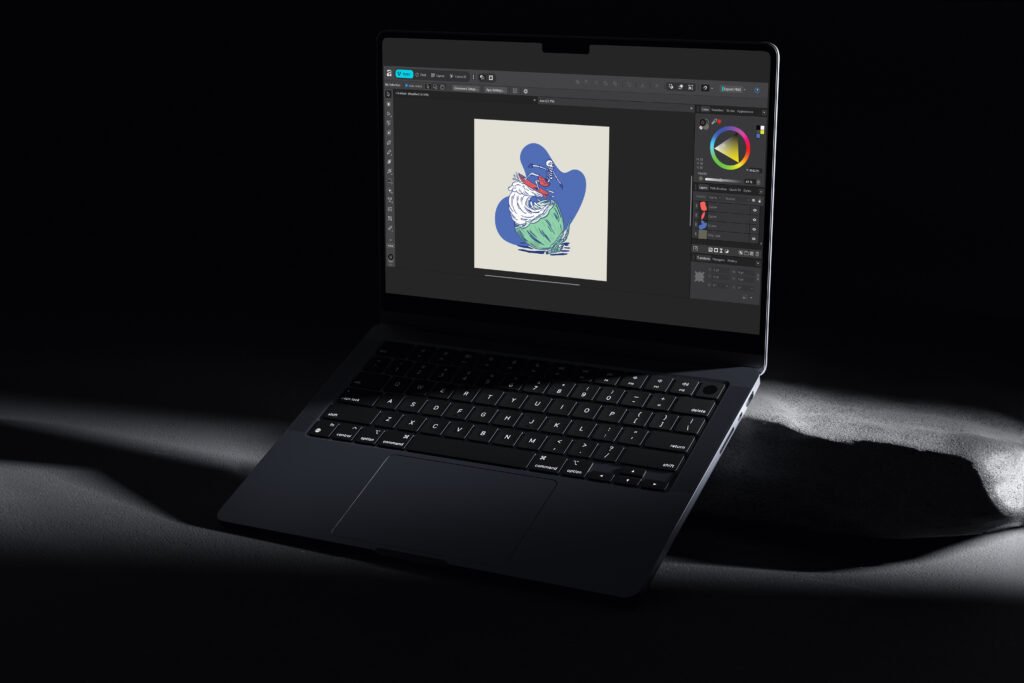
The Vector Studio contains all the powerful tools for creating precise vector graphics, logos, illustrations, and UI designs. These Affinity shortcut keys are essential for vector work:
Tool Selection in Vector Studio
Quickly switching between tools is essential for efficient design work:
- Move Tool: V
- Node Tool: A
- Pen Tool: P
- Pencil Tool: N
- Shape Tools Cycle: U (cycle through rectangle, ellipse, polygon, etc.)
- Text Tools Cycle: T
- Crop Tool: C
- View Tool (Hand): H
- Zoom Tool: Z
Vector Object Manipulation
These shortcuts help you work with vector objects more efficiently:
- Select All: Ctrl + A (Windows) / Cmd + A (Mac)
- Deselect: Ctrl + D (Windows) / Cmd + D (Mac)
- Group: Ctrl + G (Windows) / Cmd + G (Mac)
- Ungroup: Ctrl + Shift + G (Windows) / Cmd + Shift + G (Mac)
- Lock Object: Ctrl + L (Windows) / Cmd + L (Mac)
- Convert to Curves: Ctrl + Enter (Windows) / Cmd + Enter (Mac)
Vector Layer Management
Efficient layer managment is crucial in vector design:
- New Layer: Ctrl + Shift + N (Windows) / Cmd + Shift + N (Mac)
- Select All Layers: Ctrl + Alt + A (Windows) / Cmd + Option + A (Mac)
- Move Forward: Ctrl + ] (Windows) / Cmd + ] (Mac)
- Move to Front: Ctrl + Shift + ] (Windows) / Cmd + Shift + ] (Mac)
- Move Backward: Ctrl + [ (Windows) / Cmd + [ (Mac)
- Move to Back: Ctrl + Shift + [ (Windows) / Cmd + Shift + [ (Mac)
Pixel Studio Shortcut Keys
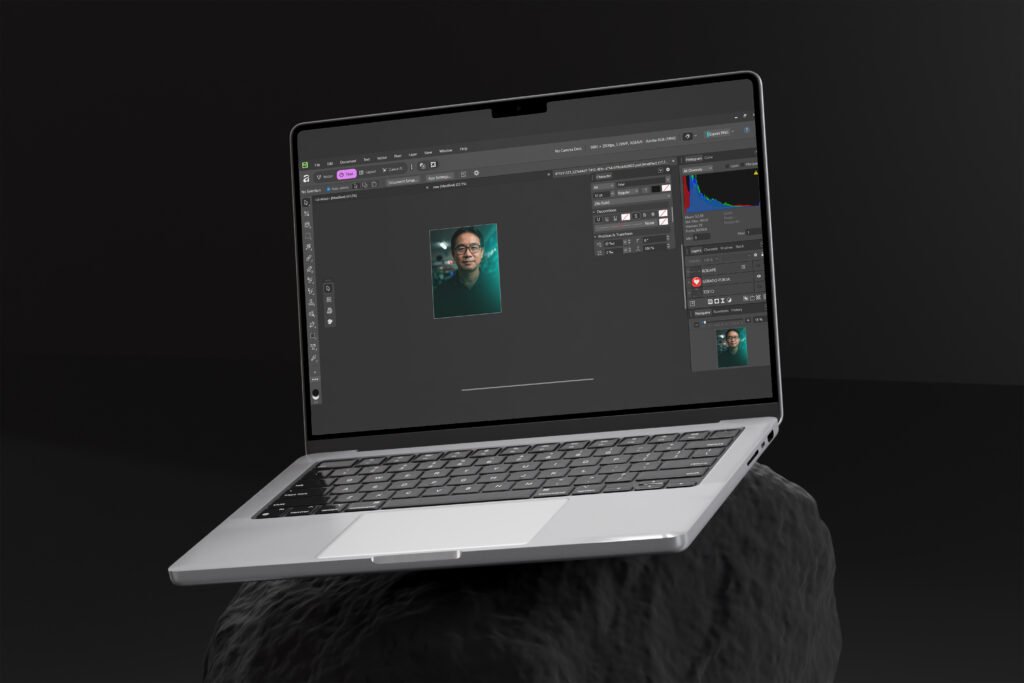
The Pixel Studio is where all your photo editing magic happens. Master these Affinity shortcut keys for efficient image editing:
Tool Access in Pixel Studio
Quick tool access is critical for photo editing workflow:
- Flood Fill/Gradient Cycle: G
- Clone Tool: S
- Painting Tools Cycle: B
- Erase Tools Cycle: E
- Dodge/Burn/Sponge Cycle: O
- Retouch Tools Cycle: J
- Selection Tools Cycle: W
- Marquee Selection Tools: M
- Free Hand Selection: L
Photo Adjustment Shortcuts
These Affinity shortcut keys provide quick access to common photo adjustments:
- Levels Adjustment: Ctrl + L (Windows) / Cmd + L (Mac)
- Curves Adjustment: Ctrl + M (Windows) / Cmd + M (Mac)
- HSL Adjustment: Ctrl + U (Windows) / Cmd + U (Mac)
- Invert: Ctrl + I (Windows) / Cmd + I (Mac)
- Black and White Adjustment: Ctrl + Shift + Alt + B (Windows) / Cmd + Shift + Option + B (Mac)
- Repeat Filter: Ctrl + F (Windows) / Cmd + F (Mac)
Pixel Layer Operations
Working with layers efficiently is key to non-destructive editing:
- Merge Down: Ctrl + E (Windows) / Cmd + E (Mac)
- Merge Selected: Ctrl + Shift + E (Windows) / Cmd + Shift + E (Mac)
- Merge Visible: Ctrl + Shift + Alt + E (Windows) / Cmd + Shift + Option + E (Mac)
- Toggle Frequency Separation Layers: F
- New from Clipboard: Ctrl + Shift + Alt + N (Windows) / Cmd + Shift + Option + N (Mac)
Selection and Masking
Precise selections are fundamental to professional photo editing:
- Select All: Ctrl + A (Windows) / Cmd + A (Mac)
- Deselect: Ctrl + D (Windows) / Cmd + D (Mac)
- Invert Selection: Ctrl + Shift + I (Windows) / Cmd + Shift + I (Mac)
- Grow/Shrink Selection: Ctrl + B (Windows) / Cmd + B (Mac)
- Feather Selection: Shift + F6
- Refine Edges: Ctrl + Alt + R (Windows) / Cmd + Option + R (Mac)
- Quick Mask: Q
- Invert Mask: Ctrl + I (Windows) / Cmd + I (Mac)
Brush and Tool Modifiers
Fine-tune your tools with these handy shortcuts:
- Increase Brush Width: ]
- Decrease Brush Width: [
- Change Layer/Brush Opacity: 0-9 keys (1=10%, 2=20%, 9=90%, 0=100%)
- Switch Stroke/Fill Colors: X
- Swap Stroke/Fill Colors: Shift + X
- Set No Fill: /
- Reset Selection Box: . (period)
Layout Studio Shortcut Keys
The Layout Studio is perfect for creating magazines, books, brochures, and multi-page documents. These Affinity shortcut keys will speed up your publishing workflow:
Document and Page Management
Navigate your multi-page documents efficiently:
- New Document: Ctrl + N (Windows) / Cmd + N (Mac)
- Insert Pages: Ctrl + Shift + P (Windows) / Cmd + Shift + P (Mac)
- Master Pages: Ctrl + Shift + M (Windows) / Cmd + Shift + M (Mac)
Text Editing Shortcuts
Typography is central to publishing, so these Affinity shortcut keys are essential:
Text Formatting:
- Bold: Ctrl + B (Windows) / Cmd + B (Mac)
- Italic: Ctrl + I (Windows) / Cmd + I (Mac)
- Underline: Ctrl + U (Windows) / Cmd + U (Mac)
- Bigger Text: Ctrl + > (Windows) / Cmd + > (Mac)
- Smaller Text: Ctrl + < (Windows) / Cmd + < (Mac)
- Precise Bigger: Ctrl + Alt + > (Windows) / Cmd + Option + > (Mac)
- Precise Smaller: Ctrl + Alt + < (Windows) / Cmd + Option + < (Mac)
- Superscript: Ctrl + Alt + + (Windows) / Cmd + Option + + (Mac)
- Subscript: Ctrl + Alt + – (Windows) / Cmd + Option + – (Mac)
Text Alignment:
- Align Left: Ctrl + Alt + L (Windows) / Cmd + Option + L (Mac)
- Align Center: Ctrl + Alt + C (Windows) / Cmd + Option + C (Mac)
- Align Right: Ctrl + Alt + R (Windows) / Cmd + Option + R (Mac)
- Justify Left: Ctrl + Alt + Shift + \ (Windows) / Cmd + Option + Shift + \ (Mac)
Character and Paragraph Spacing:
- Tighten Character Spacing: Alt + Left Arrow
- Loosen Character Spacing: Alt + Right Arrow
- Tighten More: Alt + Shift + Left
- Loosen More: Alt + Shift + Right
- Increase Paragraph Leading: Alt + Down
- Decrease Paragraph Leading: Alt + Up
- Raise Baseline: Alt + Shift + Up
- Lower Baseline: Alt + Shift + Down
Special Characters and Panels:
- Show Character Panel: Ctrl + T (Windows) / Cmd + T (Mac)
- Show Typography Panel: Ctrl + Shift + T (Windows) / Cmd + Shift + T (Mac)
- Special Characters: Ctrl + Alt + Space (Windows) / Cmd + Option + Space (Mac)
- Line Break: Ctrl + Enter (Windows) / Cmd + Enter (Mac)
- Non-breaking Space: Alt + Space
- En Dash: Alt + –
- Em Dash: Alt + Shift + –
- Spelling Options: Ctrl + Shift + ; (Windows) / Cmd + Shift + ; (Mac)
These universal Affinity shortcut keys work across all Studios in the new unified app:
Zoom Controls
Precise zoom control is essential for detail work in any Studio:
- Zoom In: Ctrl + + (Windows) / Cmd + + (Mac)
- Zoom Out: Ctrl + – (Windows) / Cmd + – (Mac)
- Zoom to Fit: Ctrl + 0 (Windows) / Cmd + 0 (Mac)
- Zoom to 100%: Ctrl + 1 (Windows) / Cmd + 1 (Mac)
- Zoom to 200%: Ctrl + 2 (Windows) / Cmd + 2 (Mac)
- Zoom to 400%: Ctrl + 3 (Windows) / Cmd + 3 (Mac)
- Zoom to 800%: Ctrl + 4 (Windows) / Cmd + 4 (Mac)
- Zoom to Actual Size: Ctrl + 8 (Windows) / Cmd + 8 (Mac)
- Zoom to Pixel Size: Ctrl + 9 (Windows) / Cmd + 9 (Mac)
Panning and Movement
Move around your canvas without using scrollbars:
- Hand Tool (Pan): Spacebar (hold)
- Zoom In (Hot Key): Ctrl + Spacebar (Windows) / Cmd + Spacebar (Mac)
- View Tool: H
- Move Item: Arrow Keys
- Move Item 10x: Shift + Arrow Keys
- Move Item 1 Pixel: Arrow Keys (in Pixel Studio)
- Move Item 10 Pixels: Shift + Arrow Keys (in Pixel Studio)
Display and Workspace Options
Control what you see on your canvas:
- Show/Hide Rulers: Ctrl + R (Windows) / Cmd + R (Mac)
- Show/Hide Guides: Ctrl + ; (Windows) / Cmd + ; (Mac)
- Show/Hide Grid: Ctrl + ‘ (Windows) / Cmd + ‘ (Mac)
- Toggle Snapping: ; (semicolon)
- Toggle UI: Tab
- Show/Hide Studio Panels: Ctrl + Shift + H (Windows) / Cmd + Shift + H (Mac)
- Show/Hide Toolbar: Ctrl + Alt + T (Windows) / Cmd + Option + T (Mac)
- Hide Workspace: Ctrl + H (Windows) / Cmd + H (Mac)
Advanced Shortcuts for Power Users
Once you’ve mastered the basics, these advanced Affinity shortcut keys will take your skills to the next level:
Transform and Manipulation
Precise object control for professional results:
- Resize Document: Ctrl + Alt + I (Windows) / Cmd + Option + I (Mac)
- Resize Canvas: Ctrl + Alt + C (Windows) / Cmd + Option + C (Mac)
- Fill: Shift + F5
- Inpaint: Alt + Tab
- Cancel Operation: Esc
Color and Style Shortcuts
Quick color and style adjustments:
- Switch Between Stroke/Fill: X
- Swap Stroke/Fill Colors: Shift + X
- Set No Fill: /
- Paste FX: Ctrl + Alt + V (Windows) / Cmd + Option + V (Mac)
- Paste Without Format: Ctrl + Shift + Alt + V (Windows) / Cmd + Shift + Option + V (Mac)
Workspace and System Shortcuts
Manage your workspace efficiently:
- Preferences: Ctrl + , (Windows) / Cmd + , (Mac)
- Media Browser: Ctrl + Alt + M (Windows) / Cmd + Option + M (Mac)
Crop Tool Special Shortcuts
When using the crop tool across any Studio:
- Toggle Between Crop Overlays: O
- Flip Golden Spiral Overlay: Shift + O
Customizing Your Affinity Shortcut Keys
One of the best features of the new unified Affinity app is the ability to customize keyboard shortcuts to match your workflow preferences:
How to Customize Shortcuts in the New Affinity
- Go to Edit > Preferences (Windows) or Affinity > Preferences (Mac)
- Click on the Shortcuts tab
- Select the Studio you want to customize (Vector, Pixel, or Layout)
- Choose the Category (tools, menu items, etc.)
- Find the command you want to modify
- Click in the shortcut field and press your desired key combination
- Click Apply to save changes
Best Practices for Custom Shortcuts
When creating custom Affinity shortcut keys, consider these tips:
- Keep it logical: Use shortcuts that make sense mnemonically
- Avoid conflicts: Don’t override essential system shortcuts
- Stay consistent: Use similar shortcuts across different Studios when possible
- Back up your settings: Export your custom shortcuts for safekeeping
- Start small: Focus on customizing your most-used commands first
Tips for Learning Affinity Shortcut Keys
Memorizing keyboard shortcuts might seem daunting, but these strategies will help you master Affinity shortcut keys quickly:
Progressive Learning Approach
Don’t try to learn all shortcuts at once. Instead:
- Week 1: Master file operations and basic editing (save, undo, copy, paste)
- Week 2: Learn tool selection shortcuts for your primary Studio
- Week 3: Add view and navigation shortcuts to your repertoire
- Week 4: Incorporate Studio-switching and advanced shortcuts
Create a Personal Cheat Sheet
Print or display a reference sheet of your most-used Affinity shortcut keys near your workspace. The unified nature of the new app means you only need one cheat sheet instead of three!
Practice Deliberately
Force yourself to use shortcuts even when reaching for the mouse feels faster initially. After a few days of deliberate practice, muscle memory will develop, and you’ll be significantly faster.
Use Tooltip Hints
The new Affinity shows keyboard shortcuts in tooltips when you hover over tools and menu items. Pay attention to these as you work—they’re excellent learning opportunities.
Platform-Specific Differences: Windows vs Mac
While most Affinity shortcut keys are consistent across platforms, remember these key differences:
Modifier Key Equivalents
- Ctrl (Windows) = Cmd (Mac)
- Alt (Windows) = Option (Mac)
- Windows Key = Command Key
Platform-Specific Shortcuts
- Application Preferences:
- Windows: Edit > Preferences (Ctrl + ,)
- Mac: Affinity > Preferences (Cmd + ,)
- Quit Application:
- Windows: Alt + F4
- Mac: Cmd + Q
Boosting Productivity with the New Unified App
The all-new Affinity’s unified structure makes Affinity shortcut keys even more powerful. Here are real-world scenarios:
Scenario 1: Complete Brand Identity Project
A designer creating a complete brand identity can now:
- Design logos in Vector Studio (V for move tool, P for pen)
- Edit product photos in Pixel Studio (B for brush, J for retouch)
- Create brand guidelines in Layout Studio (T for text tools)
- All without leaving the application or switching files!
Scenario 2: Photo-Heavy Magazine Layout
A publisher working on a magazine benefits from:
- Ctrl/Cmd + Tab to switch between documents
- Seamless Studio switching to edit photos inline
- Ctrl/Cmd + Shift + P to insert new pages quickly
- Alt + arrow keys for precise kerning adjustments
Scenario 3: Social Media Content Creation
A content creator producing social graphics uses:
- Ctrl/Cmd + N for quick new documents
- Ctrl/Cmd + J to duplicate elements rapidly
- X to swap colors efficiently
- Ctrl/Cmd + Shift + Alt/Option + S for fast export
Common Mistakes When Using Affinity Shortcut Keys
Avoid these common pitfalls when learning keyboard shortcuts:
Mistake 1: Not Adapting to the Unified Interface
The new Affinity works differently than the old separate apps. Some shortcuts that felt context-specific before now work across Studios. Embrace this unified approach.
Mistake 2: Forgetting Studio Context
While many shortcuts work everywhere, some are Studio-specific. If a shortcut isn’t working, check which Studio you’re currently in.
Mistake 3: Ignoring Custom Workspace Options
The new Affinity allows you to create completely customized workspaces. Don’t overlook this feature—create custom Studios for different project types and learn shortcuts for switching between them.
Mistake 4: Not Using the New .af File Format
The unified app uses a new .af file format that contains all vector, raster, and layout data. Learn the shortcuts for working with this format efficiently.
Essential Affinity Shortcut Keys Summary Table
Here’s a quick reference of the most important Affinity shortcut keys for the new unified app:
| Function | Windows | Mac | Works In |
| New | Ctrl + N | Cmd + N | All Studios |
| Save | Ctrl + S | Cmd + S | All Studios |
| Undo | Ctrl + Z | Cmd + Z | All Studios |
| Redo | Ctrl + Shift + Z | Cmd + Shift + Z | All Studios |
| Duplicate | Ctrl + J | Cmd + J | All Studios |
| Group | Ctrl + G | Cmd + G | Vector/Pixel |
| Move Tool | V | V | All Studios |
| Pen Tool | P | P | Vector Studio |
| Brush Tools | B | B | Pixel Studio |
| Text Tools | T | T | All Studios |
| Zoom to Fit | Ctrl + 0 | Cmd + 0 | All Studios |
Conclusion: Master Affinity Shortcut Keys for Maximum Productivity
Learning Affinity shortcut keys for the revolutionary all-new unified app is one of the smartest investments you can make in your creative workflow. The October 2025 launch has fundamentally changed the landscape—professional tools that once cost hundreds of dollars are now completely free, and they’re more powerful than ever in their unified form.
Whether you’re using the Vector Studio for graphic design, the Pixel Studio for photo editing, or the Layout Studio for publishing, keyboard shortcuts will dramatically reduce your production time and make your work more enjoyable. The unified structure means you’re learning one cohesive system instead of juggling three separate applications.
Start with the essential shortcuts covered in this guide, gradually adding more advanced combinations as you become comfortable. Remember that consistency is key—force yourself to use shortcuts even when reaching for the mouse feels faster initially. Within a few weeks, you’ll have developed muscle memory that makes these Affinity shortcut keys second nature.
The new Affinity represents a bold statement from Canva: professional creative tools should be accessible to everyone, not locked behind expensive subscriptions. By mastering keyboard shortcuts, you’re maximizing this incredible opportunity and ensuring you’re using this powerful platform to its full potential.
Don’t forget to customize shortcuts to match your personal workflow, create your own cheat sheet for quick reference, and practice regularly. Before long, you’ll be navigating the unified Affinity app with the speed and confidence of a seasoned professional—all while using completely free software.
Happy creating, and may your Affinity shortcut keys always be at your fingertips!
Do shortcuts from the old Affinity V2 apps still work?
Yes! The new unified Affinity maintains compatibility with most shortcuts from the previous versions, making the transition smooth for existing users.
Can I import my old custom shortcuts?
The new Affinity allows you to customize shortcuts similar to V2, though you may need to reconfigure them for the unified interface.
Are AI features tied to specific shortcuts?
Canva AI features like Generative Fill are available to Canva Premium users through the Canva AI Studio, and they have their own shortcuts within that interface.
Can I use Affinity shortcut keys on iPad?
An iPad version is coming soon, and it will likely support external keyboards with standard shortcuts.
Subscribe for Newsletter

